Inspect the output before deciding how to clean your own documents. These downloadable examples show what was removed and what was preserved.
These examples use synthetic content and were cleaned with the standard DocCleanPro 1.9.5 engine. Download the originals to try the rules yourself. Results for your own files depend on their structure and the rules you choose.
Word exam with a preserved diagram
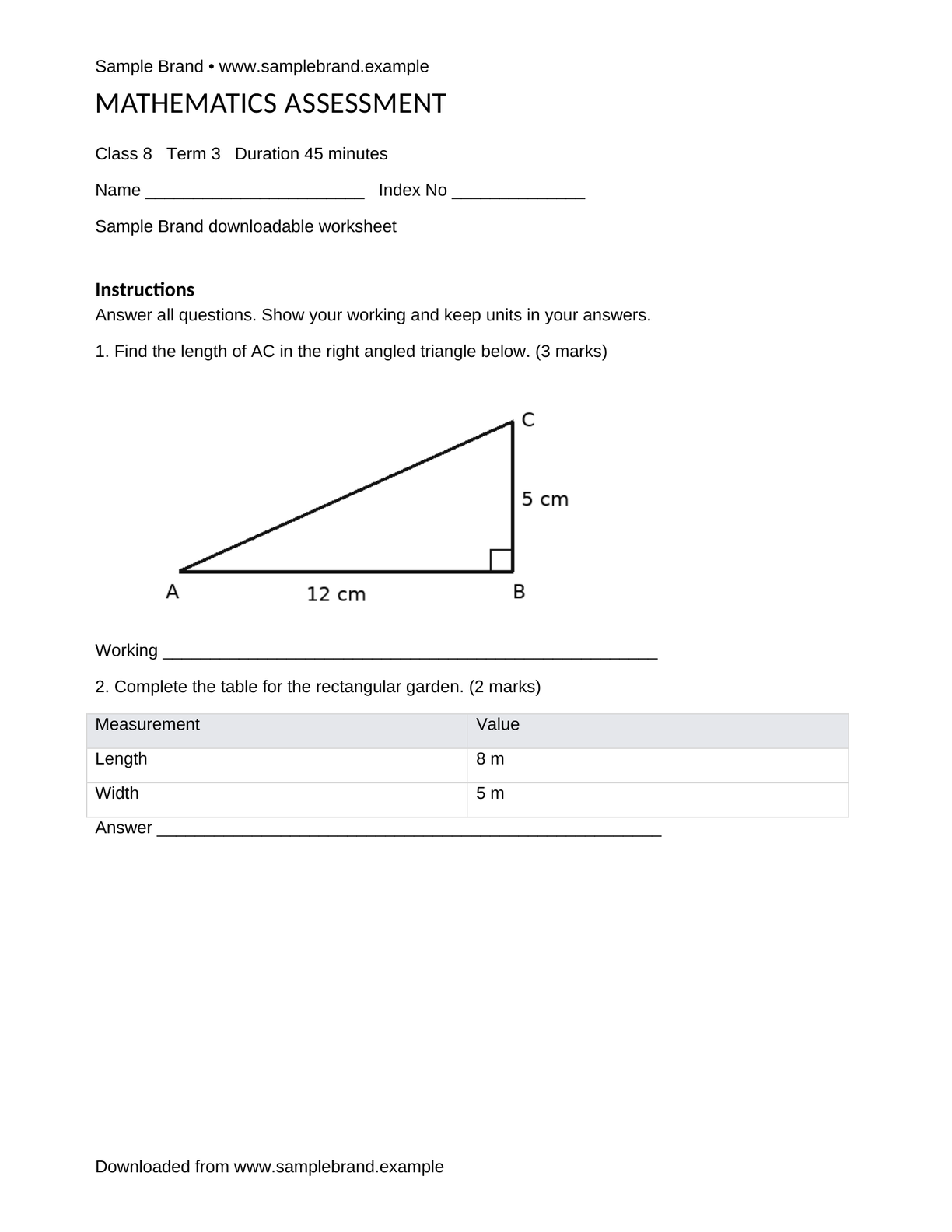
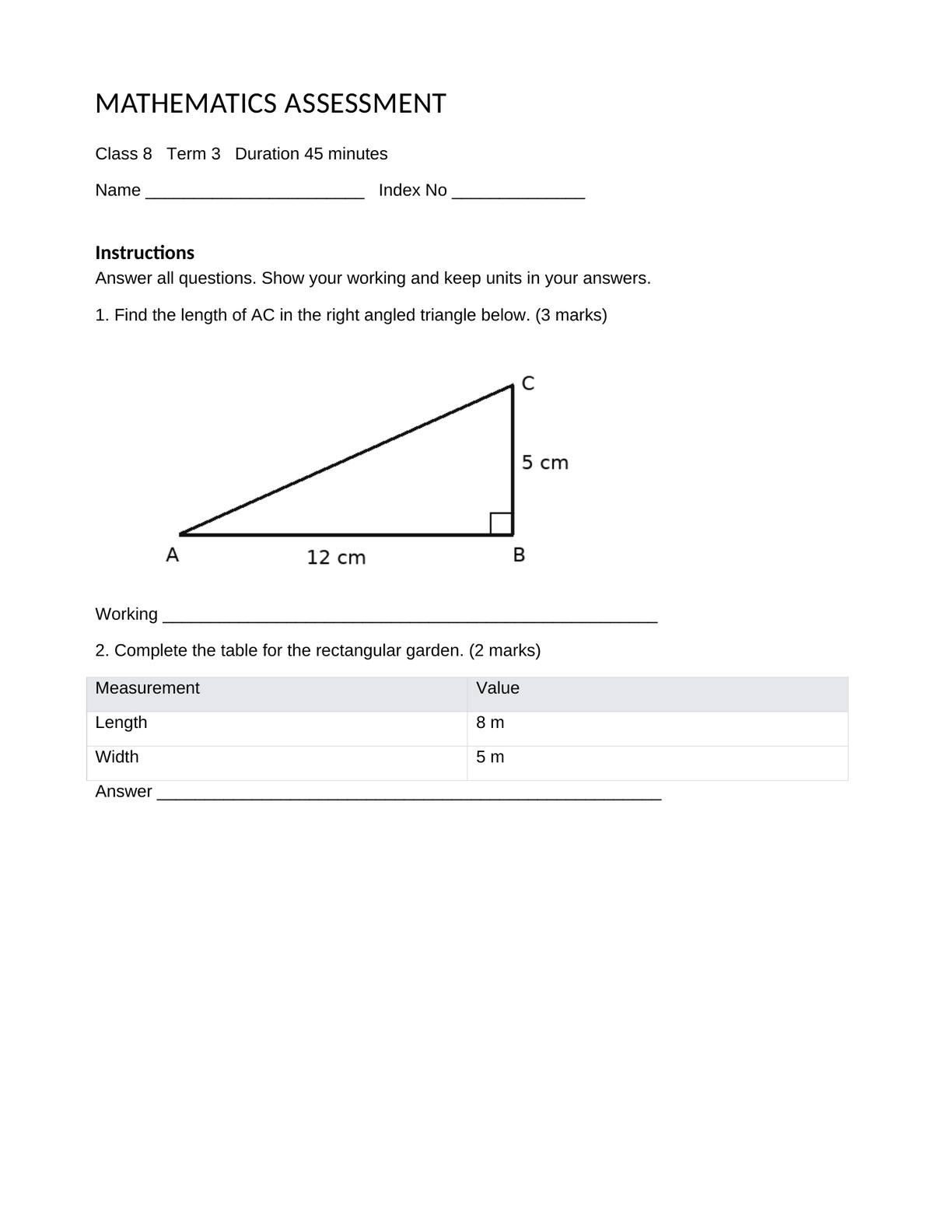
Download original sample · Download cleaned sample
Rules used: Content-Safe on, remove common branding and Word backgrounds, remove the phrase “Sample Brand”, and protect “MATHEMATICS ASSESSMENT”. The question, marks, table and diagram remain in the output.
PDF page with a selected branding area
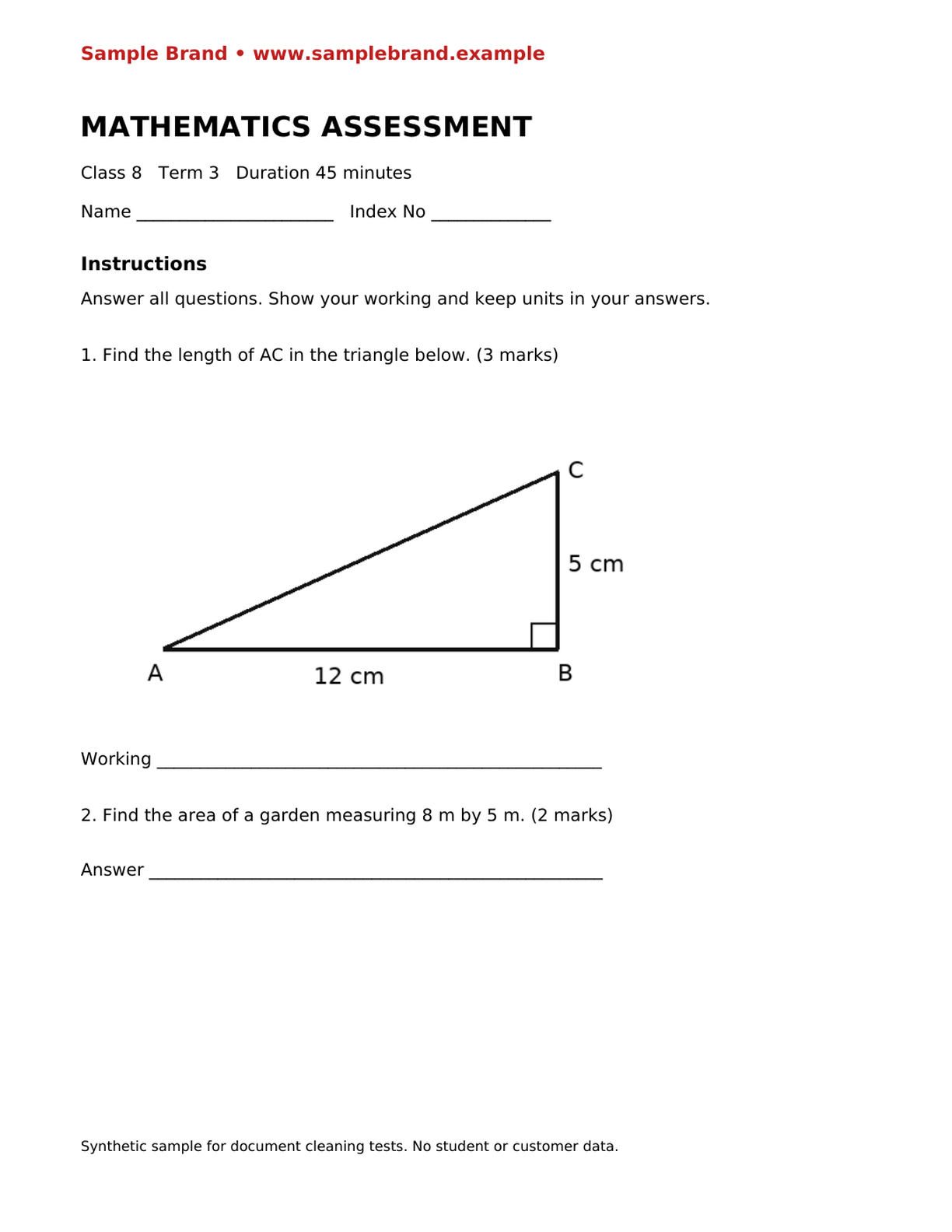
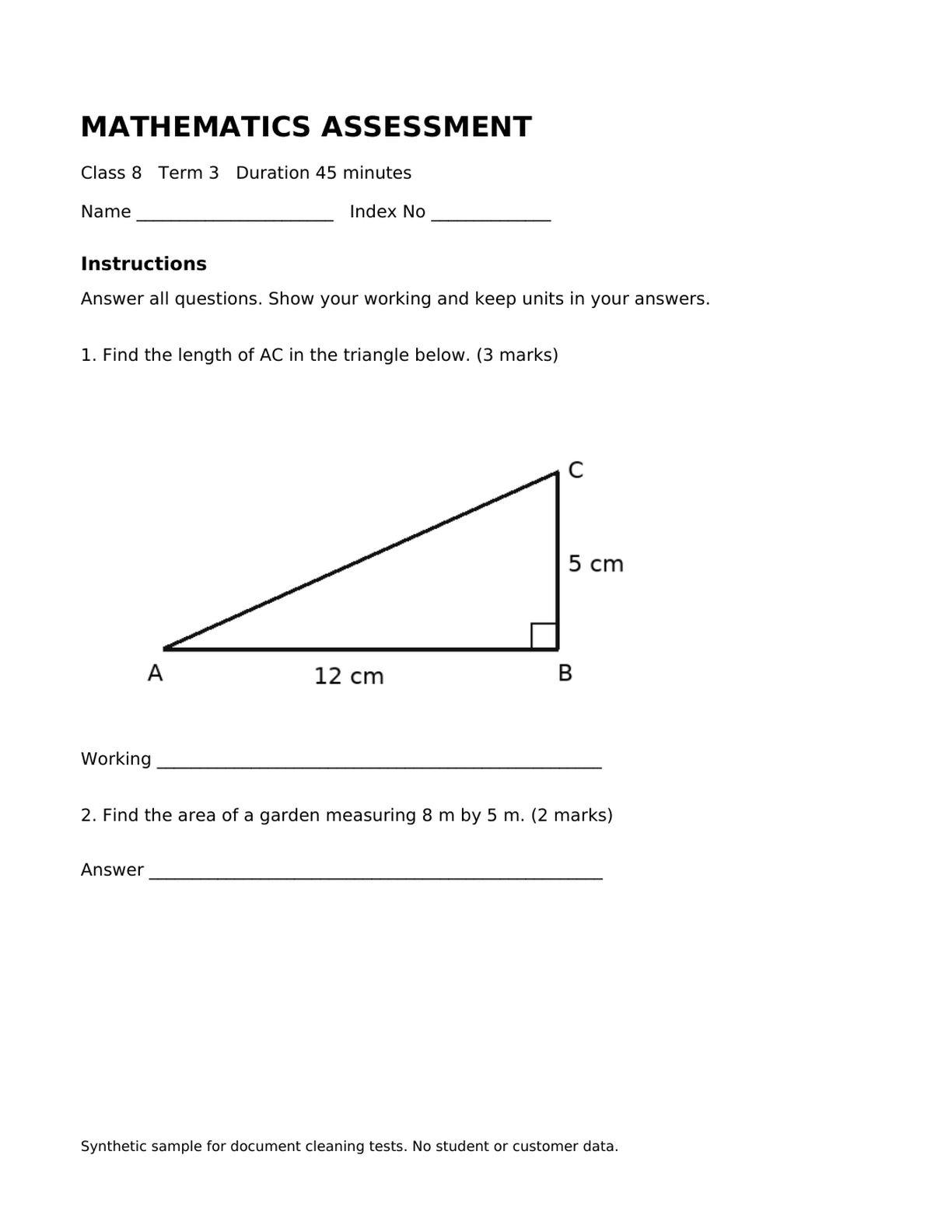
Download original sample · Download cleaned sample
Rules used: select the branding strip at the top of page 1 in the PDF visual selector. The question and diagram remain visible. The white cover does not securely redact the underlying PDF text; do not use this example for confidential data removal.
Open the standard cleaner or use OCR for scanned PDFs.
Use the examples safely
- Download an original sample and upload it in the standard cleaner.
- Apply the rules described with that example.
- Preview the first file and inspect the result.
- Clean and download the batch, then open the result in Word or your PDF viewer.
OCR output depends on scan quality and the live OCR service. These standard-cleaner examples do not certify automatic branding removal on every scanned PDF.